
The simplest phones for seniors with memory or vision loss prioritize large, easy-to-read displays, oversized buttons, a severely limited interface, and pre-set functionality that doesn’t require complex navigation or decision-making. These phones strip away the overwhelming features of modern smartphones—thousands of apps, settings, notifications, and choices—to focus on the core functions that matter: making and receiving calls, simple text messaging, and sometimes emergency assistance. A senior with progressive memory loss needs a phone where opening voicemail, dialing a family member, or understanding who’s calling takes fewer than three actions and doesn’t involve scrolling through confusing menus.
The good news is that you don’t need to buy expensive or specialized devices. Several mainstream manufacturers make legitimately simple phones designed for exactly this audience. Some seniors do better with traditional cell phones (not smartphones at all), while others benefit from a basic smartphone with heavy customization and parental controls that restrict what they can access. The challenge isn’t finding a simple phone—it’s matching the right category of phone to the specific combination of cognitive and visual decline you’re managing.
Table of Contents
- What Makes a Phone Simple for Seniors With Memory or Vision Challenges?
- Large Screens, Large Buttons, and Simplified Interfaces
- Vision-Loss Friendly Features: Text Size, Contrast, and Magnification
- Memory-Friendly Phone Features and Limited App Access
- Recommended Simple Phones and Models
- Setup and Safety Considerations for Seniors With Cognitive Decline
- When a Regular Smartphone Isn’t the Answer
- Conclusion
What Makes a Phone Simple for Seniors With Memory or Vision Challenges?
A truly simple phone for someone with memory loss or vision problems has four core characteristics: it limits the number of features and apps to the absolute essentials, displays information in high contrast with large, legible text, uses physical buttons instead of touch-sensitive areas whenever possible, and provides straightforward, logical pathways to perform common tasks. When someone’s cognitive abilities are declining, the phone shouldn’t require them to remember how to navigate or troubleshoot. If they can’t remember what they did yesterday, they certainly won’t remember that the green phone icon opens the dialer and the blue one opens messages.
Vision loss adds another layer. A senior with macular degeneration or age-related vision changes may struggle with phones where the default text is 12 points or smaller, where the color contrast between text and background is subtle, or where small icons are meant to convey meaning. The best simple phones for vision problems use fonts that start at 18-24 points by default, provide high contrast options (white text on black background or vice versa), and minimize reliance on icon-only controls in favor of words. For example, a phone that shows “Call Mom” as a large, clear button is infinitely better than one that shows a tiny phone icon that requires the senior to remember which contact it represents.
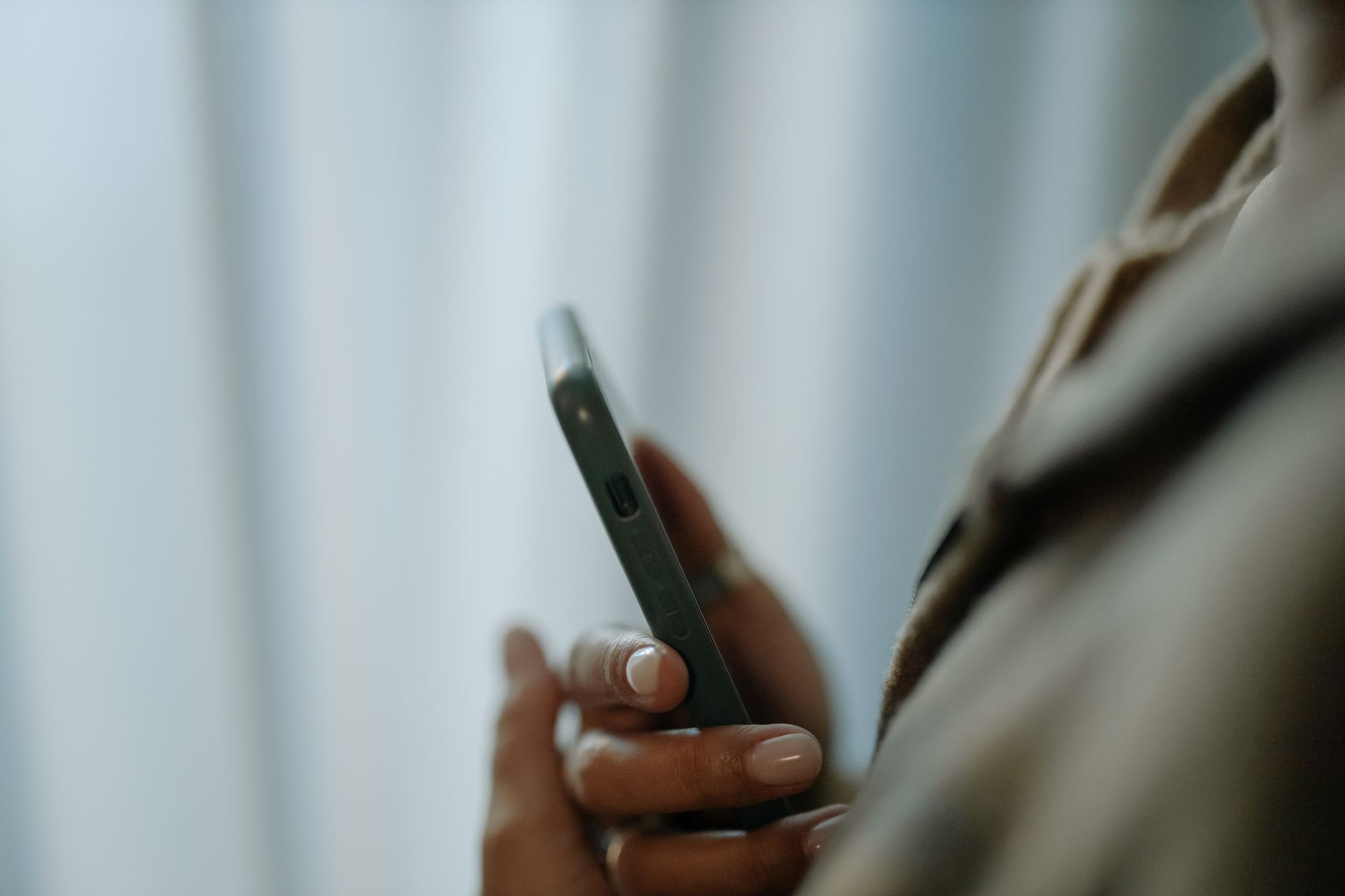
Large Screens, Large Buttons, and Simplified Interfaces
Older smartphones and dedicated senior phones from manufacturers like Doro and Lively offer 5 to 6-inch screens with buttons that are physically larger and spaced further apart than standard phones. A typical smartphone has hundreds of touch targets (apps, settings, notifications); a simple senior phone might have 8 to 12 physical buttons or large on-screen buttons that are clearly labeled with actual words, not just icons. The display itself should have a home screen that doesn’t try to show multiple apps at once—just a clean list of big buttons for “Call,” “Messages,” “Emergency,” and maybe “Camera” or “Photos.” One limitation of phones with physical buttons is that they’re often slower to navigate if someone needs to access anything beyond the pre-set functions. A Doro phone with dedicated physical buttons for calling your daughter works beautifully until you need to access a feature that isn’t on one of those buttons.
The trade-off is simplicity versus flexibility. You gain the benefit of never having someone accidentally tap into settings or delete contacts because they touched the wrong part of the screen, but you lose the adaptability of a full smartphone if needs change. Another real-world issue: after a decade of smartphones, some seniors actually prefer the familiar Samsung or Apple interface, even if it’s less than ideal for vision loss. Fighting that instinct might cause more frustration than accommodating it with aggressive customization instead.
Vision-Loss Friendly Features: Text Size, Contrast, and Magnification
For seniors experiencing age-related vision loss, the best phones allow system-wide text magnification, high-contrast color modes, and the ability to change default fonts. Android phones (from Samsung, Moto, and others) offer settings where you can increase font sizes across the entire operating system—not just in individual apps. This means email, messages, phone settings, and calendar all display larger text once you change the setting. iOS does this too, though the implementation is less uniform. Many modern phones also offer a “dark mode” that reverses text and background colors, which is genuinely easier on aging eyes and can help with conditions like cataracts (which cause glare) and macular degeneration (which affects central vision).
The challenge with relying on these accessibility settings is that they require someone to navigate into system settings and change them—the opposite of simple. A senior who can’t remember how to increase text size without getting lost in menus will be frustrated. This is where buying a phone with these settings pre-configured, or having a caregiver or tech-savvy family member configure them before handing it over, is essential. One practical limitation: enlarging text system-wide means words wrap awkwardly in some apps, buttons become huge and require scrolling to see them all, and the phone can feel cluttered. You’re trading polish and layout elegance for usability and accessibility, which is the right trade-off for someone with vision challenges.

Memory-Friendly Phone Features and Limited App Access
Smartphones for seniors with memory problems work best when access to settings, the app store, and system functions is locked down or hidden entirely. This might sound restrictive, but it’s protective. If someone has mild cognitive impairment and can’t remember how to cancel an app download or understand why their phone suddenly has a $40 charge for an accidental in-app purchase, then limiting their ability to download apps is actually giving them more freedom—freedom from confusion and financial harm. Several approaches work here. One is to use iOS with Screen Time or a parental control app that restricts app installations, hides the settings app, and sets up a home screen with only the apps you want them using.
Another is to use an Android phone with a launcher designed for seniors, like Doro’s proprietary interface or a simplified launcher from the Google Play Store. The limitation to know about: any restrictions you put in place require a password or PIN to remove or disable. If the senior forgets this password and genuinely needs access to something, or if they get frustrated and angry about being restricted, you’ve created a new problem. Real-world example: a caregiver set up an iPad for their mother with severe memory loss, restricting everything to just the phone, email, and photos app. The mother became so frustrated and feeling controlled that she refused to use it. The caregiver had to unlock it and give her more freedom, accepting some risk of accidental purchases in exchange for her dignity and cooperation.
Recommended Simple Phones and Models
The Doro 8080 and 8100 are purpose-built senior phones with large, clearly labeled physical buttons, a bright high-contrast display, and a simplified menu structure. These typically cost $100 to $150 and work on major cellular networks. They’re not smartphones—you can’t download apps or browse the internet—but they do text messaging, voicemail, and have built-in emergency response features. Another option is the GrandPad, which is actually a 10-inch tablet running a custom interface designed entirely for seniors. It has huge buttons, large text, simplified email and calling, video calling capability, and a way for family members to monitor battery status and remotely update contacts. The GrandPad costs around $30 to $50 per month, plus a device fee.
For seniors who want a real smartphone but need simplification, a used iPhone SE (the original or second generation) paired with iOS Screen Time restrictions works well. The SE is small enough to fit in a pocket, tough enough to survive drops, and you can configure it so the home screen shows only 12 large app icons for Phone, Messages, FaceTime, and Camera. You can hide settings, app store, and anything else confusing. A basic Samsung phone with a simple launcher achieves similar results. The limitation here is cost and setup: a used iPhone SE might run $150 to $250, and you need someone (a family member, a local cell phone store, or a professional setup service) to spend 30 to 60 minutes configuring it properly. It’s not a “buy and hand over” solution like the Doro is.
Setup and Safety Considerations for Seniors With Cognitive Decline
Before purchasing any phone, establish a clear process for how it will be monitored and updated. Someone with memory loss or early dementia can’t be the sole decision-maker on their own phone because they may forget they have a phone, lose it, or fall victim to phone scams more easily than a cognitively intact adult. This isn’t about violating privacy; it’s about harm reduction. A reasonable setup involves a trusted family member or caregiver having remote access (on iPhones, use Family Sharing; on Android, use Google Family Link) so they can see location, update emergency contacts, and monitor usage.
A specific real-world scenario: a senior with early memory loss was given a new phone. Within a week, he’d been called by a scammer claiming to be from his bank and gave out his Social Security number and bank account information. Had the phone been set up with limited calling (whitelisted contacts only) and had a caregiver monitoring what was happening, this would have been prevented. Another safety consideration is ensuring emergency call capability is always accessible—even if everything else is locked down, 911 must always work. Some phones allow you to pre-program emergency numbers as physical buttons or large on-screen buttons that are always available on the home screen.
When a Regular Smartphone Isn’t the Answer
Sometimes the answer isn’t a simplified phone at all—it’s no phone, or a very different solution. A senior with advanced dementia who can’t remember they own a phone or understand how to use one, or who becomes agitated when given one, might be better served by other technology: a GPS wearable watch or AirTag for location tracking if wandering is a concern, a medical alert button for emergencies, or simply ensuring they’re always with a caregiver who carries a phone. Forcing a phone on someone who is cognitively unable to use it creates frustration and won’t improve their safety.
Another scenario: some seniors have such severe vision loss that even a large-button phone isn’t usable—they need a device that speaks to them. A basic phone with text-to-speech and speech recognition, or simply a speaker-based device like an Amazon Echo (which can make calls and play messages), might be better than a visual display at all. The trade-off is that voice-based devices don’t preserve as much autonomy (someone has to help set them up, and privacy is limited), but they can still maintain connection and access to help for someone who otherwise couldn’t use any phone technology.
Conclusion
The simplest phones for seniors with memory or vision loss are not necessarily the newest or most expensive—they’re the ones that match the specific combination of cognitive and sensory decline the senior is experiencing. For moderate vision loss, a basic smartphone with accessibility settings (text enlargement, high contrast, simplified launcher) configured by a trusted family member works well. For memory problems, a phone that restricts access to settings, app stores, and confusing menus—whether that’s a dedicated senior device like a Doro or a locked-down iPhone—protects the senior from confusion and financial harm. The key is setup: buying the right phone means nothing if it’s not configured properly or if there’s no caregiver actively managing updates, monitoring usage, and ensuring access to emergency functions. Before choosing a phone, have an honest conversation about what the senior actually needs to do with it.
Can they make outgoing calls? Do they need to receive calls from specific people? Will they ever need to text? Do they require picture messages? The simpler you can make the answer—the fewer functions—the simpler the phone can be. Test the phone with the senior before committing. A dedicated senior phone that’s perfect in a store might frustrate them at home. And remember that as memory or vision decline progresses, the “right” phone today might need to change in six months or a year. Planning for that evolution, with the help of a healthcare provider or geriatric care manager, prevents crisis and ensures the senior stays connected safely.