
Smartphone tips for older adults center on three core practices: choosing a phone with features suited to your vision and hearing, adjusting the settings to make text and icons larger, and setting up emergency contacts and accessibility features that keep you independent and safe. Many older adults worry that smartphones are too complicated, but the reality is that phones today come with built-in features designed specifically for accessibility—larger text options, voice calling without typing, emergency SOS buttons, and hearing aid compatibility. If you’ve struggled with a phone in the past, it’s often because the settings weren’t optimized for your needs, not because you lack the ability to use one.
The stakes of getting this right are meaningful. A phone that’s easy to use keeps you connected to family, allows you to call for help, lets you check medical information, and gives you independence in everyday situations—from ordering a ride to finding an address. A phone that’s hard to use often sits unused on a shelf. This guide walks through practical, actionable steps to set up a smartphone that works with your vision, hearing, and confidence level, and to avoid common pitfalls that leave older adults confused or at risk.
Table of Contents
- What Type of Phone Should You Choose for Older Adults?
- Accessibility Settings That Make Smartphones Practical
- Setting Up Emergency Contacts and Safety Features
- Daily Use and Staying Connected Without Confusion
- Protecting Yourself Against Phone Scams and Unsafe Contacts
- Health and Independence Apps Worth Learning
- Voice Control and Hands-Free Features for Independence
- Conclusion
What Type of Phone Should You Choose for Older Adults?
The two main choices are iPhones (Apple) and Android phones. Both can be made very accessible—there’s no inherently “best” option for everyone. iPhones tend to have simpler menus and consistent design, which some older adults find easier to navigate. Android phones are more varied in design depending on the manufacturer (Samsung, Google, Motorola), but many older adults find them equally comfortable. The more important factor is physical design: look for a phone with a larger screen (at least 6 inches), a good camera for seeing details, and a responsive touch screen that doesn’t require a heavy touch.
Avoid very thin, slippery phones that feel fragile—a phone in a protective case that you can confidently grip is safer than a sleek phone you’re afraid to hold. If you have vision problems, consider phones with 6.5-inch or larger screens. If you have arthritis or hand tremors, avoid phones with tiny button controls and instead use a phone with a touchscreen and large virtual buttons. Some older adults benefit from phones designed specifically for seniors, which come with simplified interfaces, emergency buttons, and customer support geared toward older users. However, even basic smartphones from major manufacturers can be configured to be just as simple and protective once you adjust the settings. The real limitation: phones designed for seniors often cost more and sometimes restrict what apps you can use, which can leave you locked out of features like video calling with grandchildren or modern banking apps.
Accessibility Settings That Make Smartphones Practical
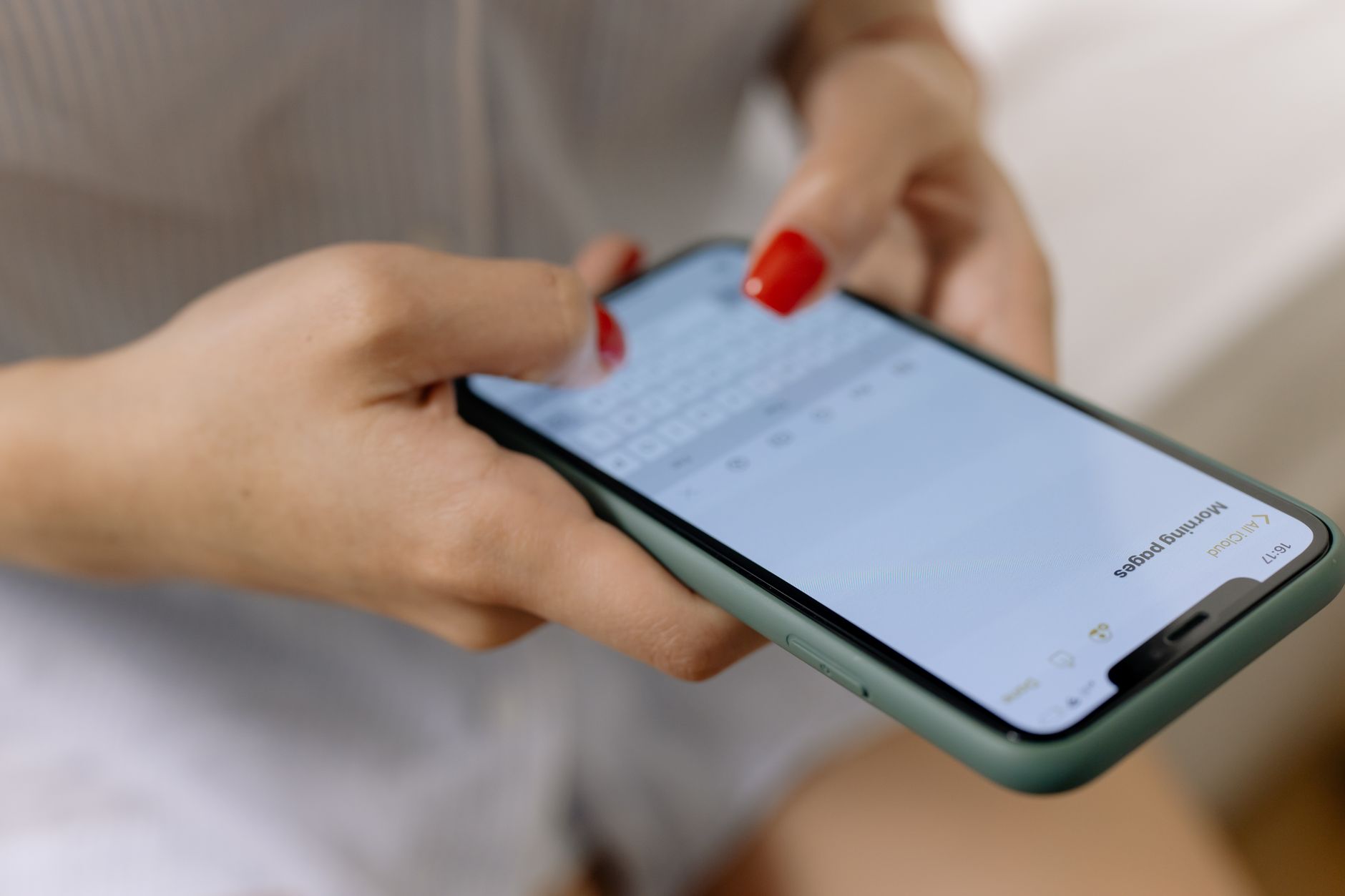
The most transformative setting is text size. Both iPhone and Android allow you to make text dramatically larger—often to sizes that are two or three times the default. On an iPhone, go to Settings > Display & Brightness > Text Size, or use Accessibility > Larger Accessibility Sizes for even bigger text. On Android, go to Settings > Display > Font Size or advanced > Font Size. Making this change alone solves the problem for many older adults who think they simply “can’t see” their phones.
A second critical setting is display zoom, which enlarges everything on the screen proportionally, not just text. This includes icons, buttons, and images. Hearing aid compatibility is another often-overlooked setting. If you wear hearing aids, check that your phone supports “Made for iPhone” hearing aid features (if you have an iPhone) or look for Android phones with good hearing aid compatibility ratings. You can also enable captions for phone calls, use speaker phone for all calls, or pair your phone with hearing aid-compatible headphones. A limitation worth knowing: older Android phones may not have full hearing aid compatibility, so if hearing aids are essential to your phone use, an iPhone may be the better choice.
Setting Up Emergency Contacts and Safety Features
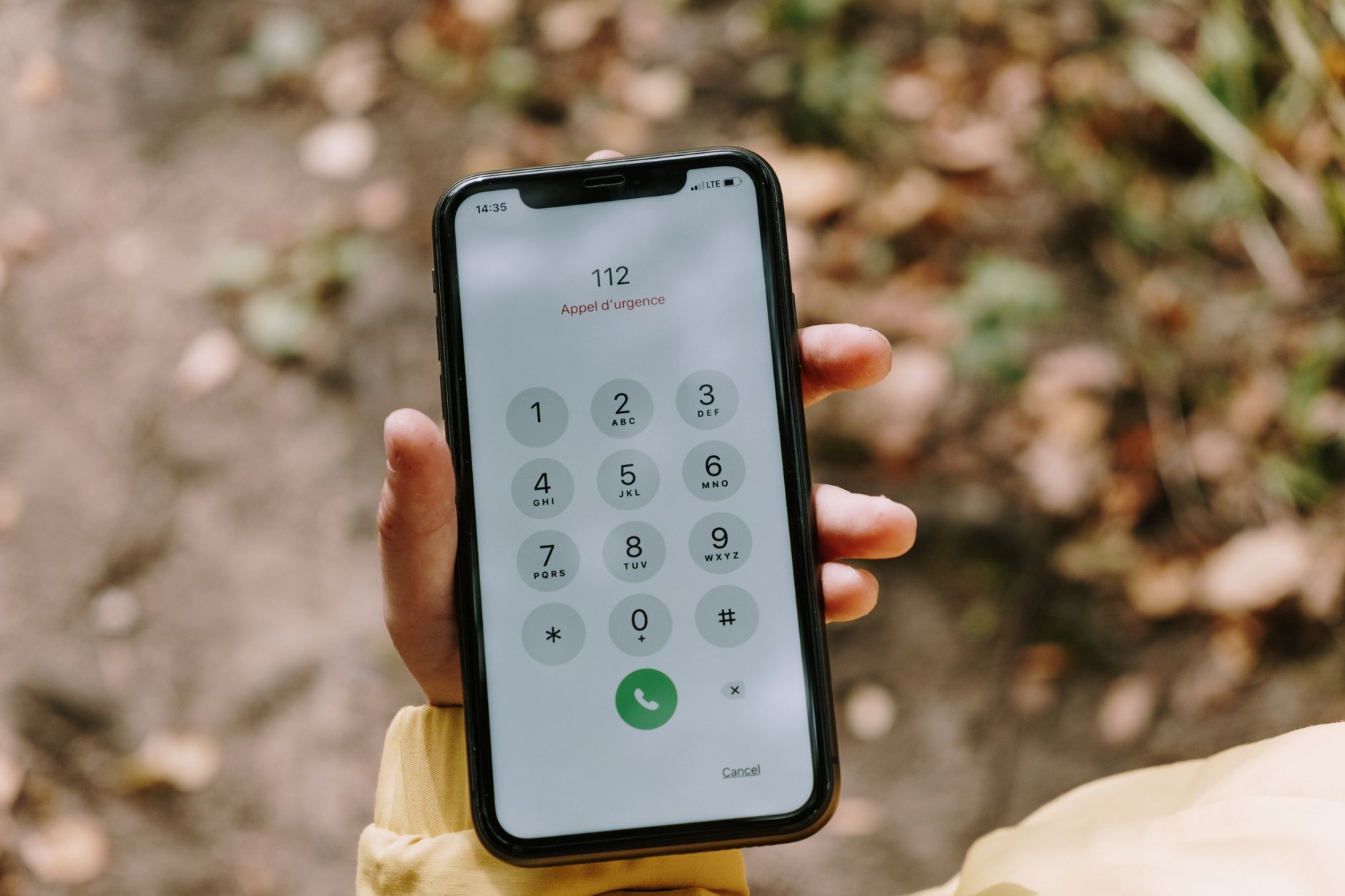
Every older adult using a smartphone should set up an ICE (In Case of Emergency) contact. On iPhone, open the Contacts app, find your own contact card, and add a note with “ICE: [Family member name and phone number].” Emergency services can see this. On Android, you can set up ICE contacts through the Contacts app or through the Emergency SOS feature in Settings. Beyond ICE, set up actual emergency contacts in your phone’s settings so that in a crisis, you can reach someone quickly. If you have an iPhone, enable Emergency SOS by holding down the power button and a volume button simultaneously—this will call emergency services and alert your ICE contacts. Another important safety layer is location sharing.
Apps like Google Maps, Apple Maps, and family-focused apps such as Life360 let trusted family members know where you are in real-time. This is not about loss of privacy—it’s about independence. If you fall or have a medical emergency outside the home, responders can find you faster if your family knows your location. A real-world example: an older adult who fell while walking to the mailbox was able to reach their phone and call family, but because location sharing was on, the family could guide emergency services directly to where she was, rather than waiting for them to search the neighborhood. One warning: make sure you understand who can see your location and set limits accordingly. Location sharing should be with family members you trust completely, not with casual contacts or large group chats.
Daily Use and Staying Connected Without Confusion
The most practical smartphone habit for older adults is to use voice calling instead of text messaging when possible. Voice calls don’t require typing, they’re faster, and they reduce the chance of misunderstanding. If your phone isn’t comfortable to hold to your ear, use a speakerphone, earbuds, or a hands-free car mount. Many older adults also benefit from having large contact buttons on their home screen—create shortcuts to the people you call most frequently so you can tap their face or name and call them immediately, without navigating through menus.
For staying connected, consider learning one primary way to share photos: either email, WhatsApp, or your phone’s built-in Messages app. Trying to master multiple photo-sharing methods creates confusion and frustration. A real-world example: an older adult with arthritis who struggled with typing found that by switching from text messaging to voice calls and enabling voice typing for occasional messages, her phone use became enjoyable instead of stressful. She could talk to her grandchildren, take and send photos by saying “send this to my daughter,” and stay independent in her daily communication. The tradeoff: voice calling requires a quiet environment and good hearing, so if you’re in a noisy place or have hearing challenges, text messaging or typed chat apps might work better—it’s okay to mix methods depending on your situation.
Protecting Yourself Against Phone Scams and Unsafe Contacts
Scams targeting older adults through phones have become increasingly sophisticated. Common tactics include calls claiming to be from your bank or the IRS, texts claiming you’ve won a prize, or messages from someone claiming to be a grandchild in trouble. The baseline protection: never give personal information (Social Security number, banking details, passwords) to anyone who calls or texts you, even if they claim to be from a trusted organization. Legitimate banks will never ask for your password over the phone. If you’re suspicious, hang up and call the organization back using a number you look up yourself (not a number provided in the call or text).
A second layer of protection is to ask family members to set up a “code word” with you. If someone claims to be your grandchild and needs help, you can ask them the code word to verify their identity. A warning: scammers are very good at social engineering—they’ll sound emotional and urgent to push you to act quickly without thinking. If you’re unsure, it’s always safe to say, “I need to call my family to verify,” and hang up. Another practical step: on both iPhone and Android, you can block numbers and enable “do not disturb” or “focus” modes so that only people in your contacts can reach you during certain hours. This dramatically reduces the number of scam calls you receive.

Health and Independence Apps Worth Learning
Apps can significantly extend your independence in aging. Medication reminder apps (like Medisafe or Pill Reminder) send alerts when it’s time to take pills and log what you’ve taken. Medical record apps (like MyChart, if your doctor uses it) let you access test results and communicate with your doctor without phone calls. Weather apps and news apps keep you informed about conditions that affect your ability to leave home safely.
Navigation apps like Google Maps or Apple Maps prevent you from getting lost and show you public transportation options if you don’t drive. A real-world example: an older adult who lived alone and had a history of forgetting medications discovered that setting up a simple reminder app meant he could take medications on schedule without relying on family check-in calls. This increased his independence and reduced his anxiety about managing his health. The limitation: not all apps are user-friendly for older adults with vision or dexterity challenges. Before you spend time learning an app, make sure the text is large enough, the buttons are big enough to tap, and the interface isn’t cluttered with distracting graphics or unnecessary features.
Voice Control and Hands-Free Features for Independence
Voice assistants like Siri (iPhone), Google Assistant (Android), and Alexa can dramatically reduce the need to type or navigate menus. You can hold down a button and say “call my daughter,” “what’s the weather,” “set a reminder for my appointment,” or “send a message to my doctor’s office.” Voice typing is another game-changer: when you need to type a message, you can simply speak instead of pecking at keys. Both iPhone and Android have good voice typing built in—just tap the microphone icon on the keyboard and speak.
Looking forward, smartphones are becoming more accommodating to older adults. New accessibility features are added regularly, and manufacturers are increasingly recognizing that older users represent a huge market. The trend is toward more voice-controlled everything, better hearing aid integration, and simpler interface options. Right now, the barrier for many older adults is simply not knowing that these features exist or how to turn them on.
Conclusion
The core smartphone tips for older adults come down to setup and habit. Choose a phone with a large enough screen that you can comfortably see it, configure the text and icon size to be larger, set up emergency contacts and location sharing so family can help if needed, and enable accessibility features that match your vision and hearing needs. The phone itself—iPhone or Android—matters far less than whether the settings work for you. Start small: get comfortable with calling, texting one trusted person, and taking photos.
Once those feel natural, add other uses like maps, health apps, or email. The goal isn’t to become an expert at all smartphone features—it’s to have a device that keeps you connected, informed, and independent. If you get stuck, ask a family member or visit your phone carrier’s store and ask for a 20-minute session on accessibility settings. Most carriers offer these sessions free.